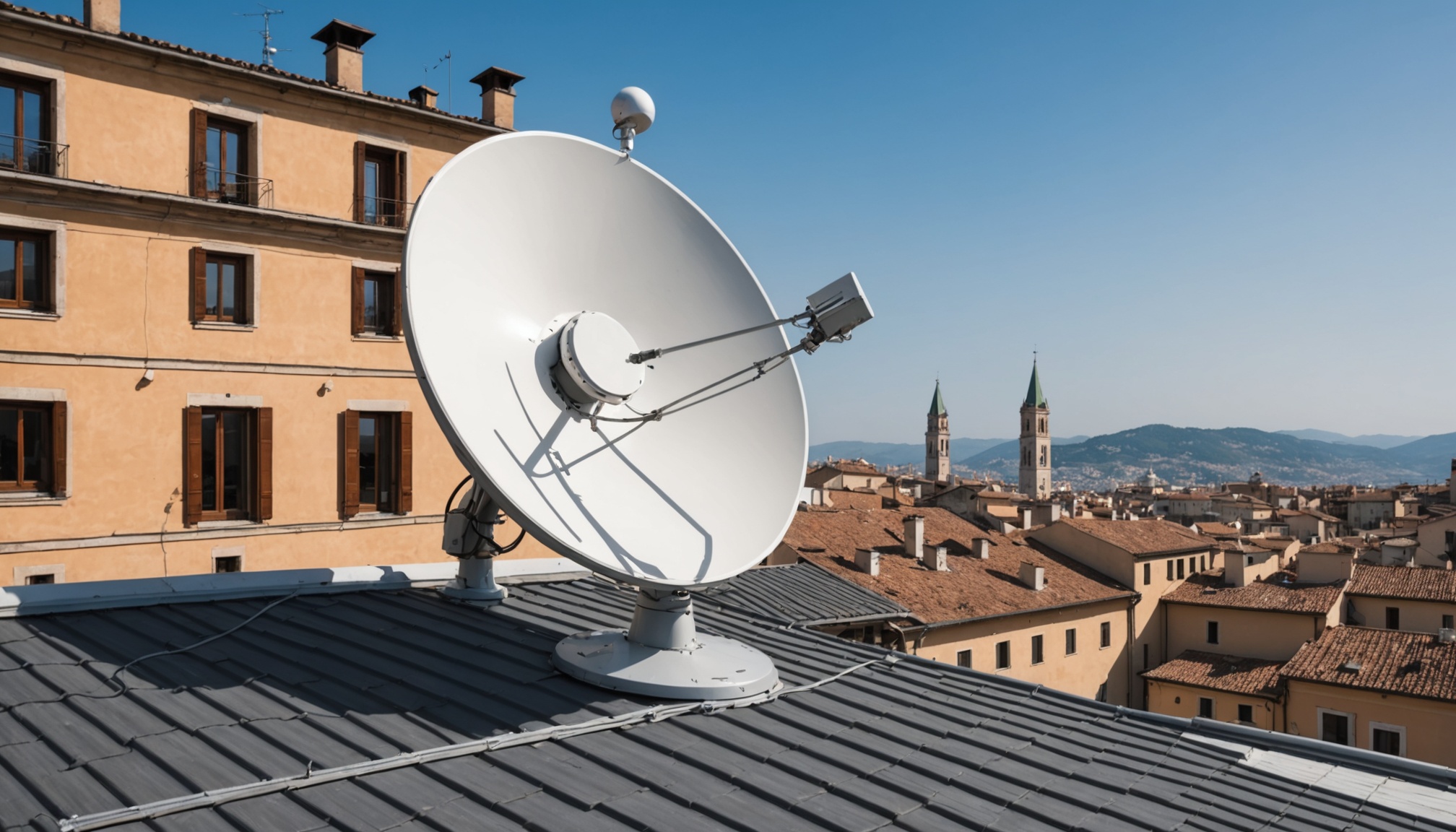
Configurazione CCcam Server Italia: Guida Tecnica Completa
Setting up a cccam server italia configurazione requires understanding both the software architecture and the specific network conditions you'll face on Italian infrastructure. Whether you're managing a home deployment or a more substantial setup, the configuration decisions you make early will determine your server's stability, performance, and ability to serve clients reliably. This guide walks through the entire process — from initial architecture decisions through security hardening — with actual configuration syntax and real-world troubleshooting scenarios specific to the Italian network environment.
Cos'è un Server CCcam e Architettura Italiana
CCcam is a client-server application that distributes conditional access credentials across a network. The server acts as a central point that aggregates feeds (sources of card access) and shares them with authorized clients. Each client connects to your server using credentials you define, and the server forwards decryption requests to its upstream sources, returning results to the client.
The architecture is straightforward but the operational considerations for an Italian deployment are specific. You'll run a single CCcam daemon listening on a network port (typically 12000, though we'll discuss why alternatives exist). Clients establish TCP connections to this port using username and password authentication. The server maintains persistent connections to feed providers — these are your upstream sources — and manages the flow of decryption data between client and feed.
Componenti Principali di un Server CCcam
The core components are simple: the CCcam binary itself (usually running as a service), the configuration file (CCcam.cfg), log files where events are recorded, and the network connections it maintains both inbound (from clients) and outbound (to feeds).
On startup, CCcam reads its configuration, binds to the specified port, and begins accepting connections. It simultaneously establishes connections to feed providers using the credentials you've configured as C-lines (provider credentials). Once operational, it sits in a loop accepting new client connections, authenticating them against your configured user list, and proxying their requests to available feeds.
For an Italian deployment, you'll need to account for timezone handling (Europe/Rome), network latency patterns across Italian ISP networks, and the tendency for certain ISPs to filter or throttle standard port numbers. The cccam server italia configurazione process therefore includes port selection as one of your first decisions.
Differenze tra CCcam e OScam per il Contesto Italiano
OScam is the more modern alternative to CCcam, written from scratch with better code organization and additional features. However, CCcam remains widely deployed and is what we're covering here. OScam offers better logging, more granular user permission controls, built-in HTTPS support, and superior resource efficiency. CCcam is simpler, has a smaller memory footprint on older hardware, and remains compatible with many legacy feed providers.
For Italian users specifically: if you're connecting to feeds from Italian or European providers, both will perform similarly. OScam's better logging becomes valuable when debugging the network issues that sometimes appear on Italian ISPs — connection instability, packet loss during peak hours, ISP-level DDoS mitigation that affects your traffic. CCcam's simplicity makes it easier to get running quickly, but OScam's monitoring tools pay dividends in a production environment.
This guide focuses on CCcam, but the networking and security principles apply equally to OScam.
Requisiti di Sistema e Infrastruttura
CCcam runs on Linux — you'll need a working Linux installation, typically Debian, Ubuntu, or a lightweight distribution on ARM devices. Minimum specifications: 256MB RAM is functional but tight; 512MB gives you reasonable headroom. CPU requirements are minimal; even a 500MHz processor handles thousands of connections if configured correctly.
Network requirements are more important than hardware specifications. You need stable upstream connectivity to feed providers. If your Internet connection drops frequently or has high packet loss, your server will experience cascading disconnections. Italian ISPs vary — some provide excellent upstream stability, others less so. Test your connection's baseline before deployment: use ping and mtr to measure latency and packet loss to known feed provider locations across Europe.
Storage is minimal — CCcam itself is a few MB, and the configuration files smaller still. Log files grow depending on connection volume, but with log rotation, you'll never exceed a few hundred MB.
Most importantly, you need either a public IP address for your server, or a stable port forwarding configuration if you're behind NAT. Some Italian ISPs use Carrier-Grade NAT (CGNAT) which prevents port forwarding entirely — this is a hard constraint worth verifying before deployment.
File di Configurazione: CCcam.cfg Struttura Completa
The CCcam.cfg file is where all configuration lives. On most systems it's located at /etc/CCcam/CCcam.cfg, though some distributions place it in /var/etc or other locations. Permissions should be 644 (readable by all, writable only by root) to prevent accidental modification by unprivileged users. The file is line-based, with comments prefixed by #.
Percorso File e Permessi Corretti
Typical installation locations depend on your distribution and how you installed CCcam. On Debian/Ubuntu systems:
- /etc/CCcam/CCcam.cfg — standard location
- /etc/CCcam/ — directory for all config files
- /var/log/CCcam.log — where logs are written
Set file ownership: sudo chown cccam:cccam /etc/CCcam/CCcam.cfg if you run CCcam as a dedicated user. Permissions: sudo chmod 644 /etc/CCcam/CCcam.cfg. The log file directory should be owned by the cccam user as well: sudo chown -R cccam:cccam /var/log/cccam/.
After modifying CCcam.cfg, restart the service: sudo systemctl restart cccam or sudo service cccam restart depending on your init system. Always verify the syntax before restarting — a bad config line will cause the service to fail silently.
Variabili Critiche: Port, Maxconnections, Timeout
These three settings drive most operational decisions for your cccam server italia configurazione.
PORT defines which TCP port CCcam listens on. The default is 12000, but many Italian ISPs block or throttle this port. Common alternatives: 12001, 1234, 8080, 9999. Test port availability before deployment using a port scanner from outside your network. Once deployed, document your chosen port clearly — all clients will need it.
Example configuration:
PORT = 12001MAXCONNECTIONS limits how many simultaneous clients can connect. Higher values = more resources consumed, but allow more concurrent users. For Italian deployments with typical ISP bandwidth (20-100 Mbps), set this conservatively. A starting point: 100 connections if you have 20+ clients, 50 if you have fewer. Increase gradually after observing actual load.
MAXCONNECTIONS = 100KEEPALIVE should always be enabled. This sends periodic ping packets to clients, detecting dead connections and freeing resources:
KEEPALIVE = 1INACTIVITY defines how long (in seconds) a client can remain idle before CCcam disconnects it. Set this between 180 and 300 seconds (3-5 minutes). Shorter values reduce resource consumption but cause more frequent reconnections. Longer values prevent disruption to legitimate clients with intermittent traffic:
INACTIVITY = 240TIMEOUT controls connection timeouts for outbound feeds. Set this to 5 seconds — this is usually optimal for European feeds:
TIMEOUT = 5Configurazione dei Feed (C-line, F-line, A-line)
Feeds are your upstream sources of decryption data. Three line types define them in CCcam.cfg:
C-line (Card-line): Your credentials to connect to a feed provider. Format:
C: feedhost.example.com 12000 username passwordReplace feedhost with the actual server hostname, 12000 with its port, and username/password with your provider credentials. You can add multiple C-lines — CCcam will load-balance across them. If one feed becomes unavailable, others take over.
C: feed1.provider.net 12000 myuser mypass
C: feed2.provider.net 12001 myuser mypass
F-line
F: publicserver.net 12000F-lines are rare in modern deployments and generally less reliable than authenticated feeds.
A-line For your initial cccam server italia configurazione, stick with 1-3 C-lines from reliable sources. Test each connection manually before enabling in production (we'll cover testing in the troubleshooting section). User credentials are defined as lines starting with account: The final number is permission level (1 = user, 2 = admin, etc.). Most clients use level 1. Never reuse passwords across multiple accounts. Rotate credentials periodically — monthly is reasonable for production environments. Never hardcode C-line credentials in plain text if you share your CCcam.cfg with team members. Instead, maintain a master config on a secure server and distribute sanitized copies. Similarly, if you backup configurations, encrypt the backups. ALLOWED controls which IP addresses can connect as clients: For a home server serving only household devices, restrict to your home network. For broader deployments, you might allow any IP, but combine this with strong authentication. CCcam respects the system timezone — set your server to Europe/Rome to ensure logs and timestamps are meaningful: Verify with Log file format should include timestamps. Enable verbose logging during initial setup to diagnose issues: Disable DEBUG (set to 0) in production — verbose logging consumes CPU and disk I/O. Switch it back on only when troubleshooting specific issues. Network configuration is where Italian ISP realities become relevant. You'll define firewall rules, handle port forwarding if you're behind NAT, and implement DDoS protection. These decisions directly impact reliability. If your server has a public IP and you're using a firewall (highly recommended), you must explicitly allow the port CCcam listens on. Using UFW (Uncomplicated Firewall): Replace 12001 with your chosen port. Verify the rule was added: Using iptables directly (more low-level): If you're using a firewall appliance (router, pfSense, etc.), add equivalent rules there instead. Test port accessibility from an external network. From a client machine on a different network, try: If the connection succeeds (you see a blank prompt), the port is open. If it times out or refuses, check your firewall rules. If your server is behind a home router (NAT), you need port forwarding. Log into your router's admin panel, find the port forwarding section, and forward external port 12001 (or your chosen port) to your server's internal IP on the same port. Example: external port 12001 → internal IP 192.168.1.100:12001 After configuring port forwarding, test from outside your network using the same telnet command above, but replace your.server.ip with your router's public IP (find it at a site like whatismyip.com). Important for Italian ISPs: Some Italian ISPs (particularly Telecom Italia) use Carrier-Grade NAT, which prevents you from configuring port forwarding at all. Test your ISP's NAT type: if port forwarding doesn't work, you may need colocation (renting rack space in a data center with a public IP) or alternative solutions like reverse SSH tunneling. A CCcam server can attract abuse attempts. Implement rate limiting to prevent connection exhaustion attacks. Using iptables with limit module: This allows maximum 100 new connections per minute to port 12001. Adjust the limit based on expected legitimate traffic. For a home server with 20 clients, 100/minute is excessive — 20/minute might be more appropriate. More sophisticated: use fail2ban to detect brute-force authentication attempts and temporarily ban offending IPs. Create /etc/fail2ban/filter.d/cccam.conf: Create /etc/fail2ban/jail.local entry: This bans any IP that fails authentication 5 times within 10 minutes, for 1 hour. Restart fail2ban: Maintain an IP whitelist for trusted clients if possible. In CCcam.cfg, use ALLOWED to restrict client IPs: For dynamic IP clients (common in Italy where home broadband often uses dynamic assignment), you'll need broader ranges or periodic credential rotation. An alternative: use firewall rules to allow only known IP ranges, and require strong passwords for all clients. Periodically audit active connections to identify unauthorized access. More on this in the troubleshooting section. Some Italian users connect through VPN for privacy. CCcam works through VPN but with caveats: VPN adds latency (often 50-150ms extra), increases the risk of disconnections, and may cause your server to see repeated connections from the same VPN exit IP if multiple clients use the same VPN provider. If you're accepting VPN clients, whitelist the VPN provider's exit IPs if possible. Expect higher CPU and bandwidth usage compared to direct connections. If performance degrades with VPN clients, reduce MAXCONNECTIONS to ensure remaining clients get adequate resources. Better approach for production environments: encourage clients to use direct connections where possible, reserve VPN access for specific users where privacy is critical. Once your basic configuration is running, focus shifts to operational management: verifying feeds work, monitoring client activity, and diagnosing the inevitable issues that arise. This is where real-world experience matters. Adding users manually in CCcam.cfg works for small deployments. For each new client, add a line: Use unique usernames and passwords — resist the temptation to share a single credential across multiple clients. This makes troubleshooting impossible: you won't know which client is causing issues. Generate passwords with strong entropy. A simple approach: After adding accounts, reload CCcam without full restart: some versions support a reload signal. For safety, restart the service: For larger deployments, write a script that auto-generates and stores credentials in a database, pushing updates to CCcam.cfg periodically. This is beyond scope here but valuable if you serve 100+ clients. When you first add a C-line, test it before considering it operational. Use telnet to connect manually: You should see a connection establish. If the host is reachable but the port is wrong, or the server is down, you'll get a timeout or refused connection. This tells you whether basic network connectivity works. Next, check CCcam's log to see if it successfully authenticated. Look at /var/log/cccam/cccam.log: Successful authentication appears as lines like: AUTH_FAILED errors mean your credentials are wrong, the feed provider's credentials for that server are invalid, or your IP isn't whitelisted by the provider. Always verify feed provider credentials directly before adding them to CCcam.cfg. Request updated credentials if you're unsure. Log interpretation is crucial. The main log file location varies by installation — common paths are /var/log/cccam/cccam.log, /tmp/cccam.log, or /var/tmp/cccam.log. Check your startup script or systemd unit to confirm. Key error types you'll encounter: AUTH_FAILED: Authentication failed for a client or feed. Check credentials, verify the client's account exists in your config, ensure the feed provider's credentials are current. Solution: verify the password in your account line matches what the client is using. TIMEOUT: Connection exceeded the timeout threshold without completing an operation. Often indicates network latency or an overloaded server. Solution: increase the TIMEOUT value in CCcam.cfg if your feed provider is distant. If it's a persistent issue with a specific feed, consider switching to an alternative. BROKEN_LINK: Feed connection dropped unexpectedly. This can indicate the feed provider's server crashed, your ISP filtered the connection mid-stream, or your server ran out of file descriptors. Monitor systemwide limits: INACTIVITY: Client was inactive and was disconnected by the server. This is normal. If clients disconnect too frequently, raise the INACTIVITY timeout value. To see all activity in real-time: To count authentication failures in the last hour: Clients complain about frequent disconnections. Diagnose by checking: (1) Is the server's upstream feed stable? (2) Is the client's local network or ISP connection flaky? (3) Are your timeout settings too aggressive? Check upstream stability by monitoring feed connections in real-time: If you see frequent BROKEN_LINK messages, your feeds are unstable. Options: (1) switch to more reliable feed providers, (2) add redundant feeds so one failure doesn't affect clients, (3) investigate ISP-level packet loss (run If upstream is stable but clients disconnect, adjust timeout settings: Increase KEEPALIVE frequency if KEEPALIVE=1 already (some versions allow KEEPALIVE=N where N is seconds between pings). For Italian ISP users specifically: evenings (7-10pm) often see performance degradation due to network congestion. If disconnections spike at specific times, this is likely the cause. Solutions: (1) add more feed capacity, (2) implement QoS on your server's uplink, (3) reduce MAXCONNECTIONS during peak hours using a cron script. Italian ISPs vary widely in capacity. During evening primetime (7-10pm), many networks experience congestion. Monitor your server's behavior during these periods to identify bottlenecks. Key metrics to track: CPU usage: Memory usage: Bandwidth: Active connections: If performance degrades during peak hours, options include: (1) reduce MAXCONNECTIONS to shed excess load gracefully, (2) implement per-user bandwidth limits (some CCcam versions support this), (3) add additional feed providers to distribute load. A production CCcam server should run in a hardened environment. This section covers access control, monitoring, backups, and legal considerations specific to Italian users. If you manage your server remotely via SSH, apply these hardening measures immediately: Disable password authentication: Use SSH keys instead. Generate a key pair: Copy the public key to your server's ~/.ssh/authorized_keys. Then disable passwords in /etc/ssh/sshd_config: Restart SSH: Change default SSH port: Most attackers scan port 22. Change it to something obscure (e.g., 2222): Update your firewall to allow the new port: Enable fail2ban for SSH: This is built into fail2ban by default. Verify it's protecting SSH by checking /etc/fail2ban/jail.local has sshd enabled. Use strong passphrases for SSH keys: Never leave an SSH key unencrypted on a workstation. Standard CCcam doesn't support TLS encryption of client-server traffic. This is a limitation compared to OScam, which does. If encryption of traffic is important, either: (1) switch to OScam, (2) tunnel CCcam through a VPN, or (3) run it on a private network accessible only to trusted clients. For most home deployments, relying on authentication (strong passwords) and firewall rules (IP whitelisting) is sufficient. For business environments handling sensitive data, TLS becomes important. Regularly audit who's accessing your server: More useful: parse the CCcam log for new connections from unexpected IPs: Watch for repeated AUTH_FAILED attempts from the same IP (indicates brute-force attack). fail2ban should handle this, but verify it's working: If you find unauthorized access, immediately rotate credentials: update all account passwords in CCcam.cfg and restart the service. Use tools like nethogs and iftop to detect unusual traffic patterns. Unexpected high bandwidth consumption might indicate a compromised client or a feed provider sending malicious data. Automate backups of your CCcam.cfg file. A simple cron job works: This backs up your config daily at 2 AM. Keep backups on a separate machine, not on the server itself. For example, use rsync to a NAS: Encrypt backups if they contain sensitive credentials: Test disaster recovery: periodically verify you can restore from backup and have the server running again within 30 minutes. Operating a CCcam server in Italy exists in a complex legal landscape. Users should understand that Italian telecommunications law (Codice delle Comunicazioni) and copyright law place restrictions on service distribution and unauthorized access to protected content. This is not legal advice — consult an Italian lawyer if you have specific concerns. Key points for server operators: The safest approach: operate your server for a small number of authorized users (household, trusted friends), maintain clear records of who has access and when, and keep logs of all activity for at least 6 months. The default port is 12000, but many Italian ISPs block or throttle this port aggressively. Test port availability from outside your network before deployment using a port scanner. If 12000 is unavailable, try 12001, 1234, 8080, or 9999 in that order. Document your chosen port clearly — all clients need to know it. Some Italian ISPs (particularly mobile carriers) filter high-numbered ports preferentially. Port 1234 sometimes succeeds where 12000 fails. After deployment, periodically verify your chosen port remains accessible — ISPs change filtering rules without notice. AUTH_FAILED means authentication failed — either a client provided wrong credentials, or your server couldn't authenticate to a feed provider. For clients: verify the username and password they're using match your CCcam.cfg account line exactly (check for typos, whitespace). For feed providers: confirm the C-line credentials are current — contact your provider if unsure. Also verify your server's IP isn't blacklisted by the provider; some require IP whitelisting. Test feed connectivity manually with telnet to isolate whether the problem is network connectivity or authentication. Check your firewall rules — the feed provider might require specific return traffic to be allowed. Use netstat or ss to count active connections to your CCcam port: Common causes: (1) INACTIVITY timeout set too low — increase from 180 to 300 seconds; (2) KEEPALIVE disabled — enable it with KEEPALIVE=1; (3) upstream feed provider dropping connections — check logs for BROKEN_LINK errors; (4) ISP connection instability — run Technically yes, but not recommended. VPN adds 50-150ms latency and increases disconnection risk. If a client must use VPN, expect them to experience more frequent disconnections and slower performance. If multiple clients use the same VPN provider, your server sees repeated connections from the same exit IP, making IP whitelisting difficult. If you support VPN clients: (1) whitelist the VPN provider's IP ranges, (2) reduce timeout values to 3-4 seconds, (3) enable short KEEPALIVE intervals, (4) reduce MAXCONNECTIONS if performance suffers. Better solution: encourage clients to use direct connections where possible. Reserve VPN support for specific users where privacy is critical, not as default. Evaluate providers on: (1) Uptime — 95%+ realistic uptime is standard, 99% is excellent; (2) Support — responsive email or chat support matters; (3) Transparency — they should clearly state server locations and maintenance windows; (4) Pricing — reasonable and consistent; no hidden fees; (5) Community reputation — ask in forums or communities (but verify independently); (6) Onboarding — do they test credentials before going live?; (7) Contract terms — understand minimum terms and exit clauses. Red flags: promises of 100% uptime (impossible), very cheap pricing (indicates poor infrastructure), no contact information, new providers with zero track record, reviews only from affiliated sites. Vet independently through multiple sources, not single recommendations. Start with small feeds from 2-3 providers — if one fails, others handle the load. Rotate providers periodically based on performance metrics. Yes, but it requires careful management. Each instance needs: (1) separate port (12000, 12001, 12002, etc.), (2) separate config file (/etc/CCcam/CCcam1.cfg, CCcam2.cfg), (3) separate log directory, (4) separate systemd unit files or init scripts. The main limitation is resource contention — multiple instances compete for CPU, memory, and disk I/O. A server with 512MB RAM can comfortably run 1 instance; 1GB+ can handle 2-3. Each instance maintains separate feed connections — redundancy is good, but overhead is real. Practical approach: run a single primary instance for most users, second instance for redundancy (same feeds, same credentials, in case primary fails). Monitor resource usage carefully: if CPU exceeds 50% combined, you've overloaded the server. Scale horizontally (multiple physical servers) rather than vertically (more instances per server) once you exceed 50-100 simultaneous users. Carrier-Grade NAT (CGNAT) is used by some Italian ISPs and prevents port forwarding entirely — you can't expose a public port to your home server. Options: (1) Switch ISPs — if you're on an Italian mobile carrier or secondary ISP, switching to a home fiber provider often provides a public IP; (2) Colocation — rent rack space in a data center with a public IP and run your server there (costs €50-200/month depending on provider); (3) Reverse SSH tunnel — run an SSH tunnel from your server to a remote server with a public IP, tunneling connections back through the tunnel (complex, high latency); (4) Cloud VPS — rent a small VPS (€5-15/month) and run CCcam there instead of home infrastructure. For most users, switching ISPs or moving to colocation is simpler than workarounds. Contact your ISP to confirm whether you have CGNAT: if they can't assign a static public IP, you do. Sudden bandwidth spikes usually indicate abuse: (1) a client streaming on multiple devices simultaneously, or (2) someone discovered your server's port and is attacking it. Use nethogs to identify which process is consuming bandwidth: Frequent IP changes from mobile clients are normal. CCcam handles this by re-authenticating on each reconnection — if credentials are correct, the client remains authorized regardless of source IP. Set INACTIVITY and timeout values conservatively (INACTIVITY=240, TIMEOUT=5) to minimize reconnection delays from IP changes. Avoid strict IP whitelisting for mobile clients — either allow any IP (less secure) or maintain a dynamic whitelist you update manually. The security trade-off is acceptable if client credentials are strong. Mobile clients experience higher disconnection rates than fixed-line; document this expectation. For high-value clients requiring premium support, encourage them to use fixed-line connections where possible. Monitor reconnection frequency: if a client reconnects more than once per 5 minutes, investigate whether their ISP or connection is failing.A: 0100:003311 feed1.provider.net 12000 user passParametri di Sicurezza e Autenticazione
account = user1 password1 1
account = user2 password2 2ALLOWED = 192.168.0.0-192.168.0.255
ALLOWED = 10.0.0.0-10.0.255.255Impostazioni Regionali per Utenti Italiani
sudo timedatectl set-timezone Europe/Romedate — output should show "CEST" (Central European Summer Time) or "CET" (Central European Time) depending on season.LOGFILE = /var/log/cccam/cccam.log
DEBUG = 1Configurazione di Rete e Firewall per Ambiente Italiano
Apertura Porte Corrette (iptables/ufw)
sudo ufw allow 12001/tcpsudo ufw statussudo iptables -A INPUT -p tcp --dport 12001 -j ACCEPT
sudo iptables -A OUTPUT -p tcp --sport 12001 -j ACCEPTtelnet your.server.ip 12001Configurazione NAT e Port Forwarding
DDoS Protection e Rate Limiting Specifico
sudo iptables -A INPUT -p tcp --dport 12001 -m limit --limit 100/minute -j ACCEPT
sudo iptables -A INPUT -p tcp --dport 12001 -j DROP[Definition]
failregex = AUTH_FAILED for user .* from [cccam]
enabled = true
port = 12001
filter = cccam
logpath = /var/log/cccam/cccam.log
maxretry = 5
findtime = 600
bantime = 3600sudo systemctl restart fail2banWhitelist IP e Gestione Accessi
ALLOWED = 192.168.1.0-192.168.1.255
ALLOWED = 203.0.113.50Connessioni da VPN e Proxy (Considerazioni)
Gestione Utenti, Feed e Troubleshooting Comune
Creazione e Gestione Credenziali Utente
account = clientname clientpassword 1openssl rand -base64 16 produces a 16-character random string.sudo systemctl restart cccamAggiunta Feed Provider e Validazione Connessioni
telnet feedhost.example.com 12000grep "feedhost.example.com" /var/log/cccam/cccam.logfeed feedhost.example.com 12000: connected
feed feedhost.example.com 12000: authenticatedLettura Log: /tmp/cccam.log e Interpretazione Errori
AUTH_FAILED for user client1 from 192.168.1.100timeout connecting to feed providerfeed feedhost.example.com broken linkulimit -n shows max open files. If this is low (1024), increase it: ulimit -n 65536 and add to your shell profile permanently.user client1 disconnected due to inactivitytail -f /var/log/cccam/cccam.loggrep AUTH_FAILED /var/log/cccam/cccam.log | wc -lTimeout e Disconnessioni Frequenti: Cause e Fix
watch -n 5 'grep -i "broken\|timeout" /var/log/cccam/cccam.log | tail -5'mtr feedhost.example.com for 30 seconds to measure packet loss).INACTIVITY = 300Performance Tuning per Carico Italiano
top -b -n 1 | grep cccam — should rarely exceed 30% on a multi-core system. If sustained high CPU, you're misconfiguring something (too-verbose logging, CPU-intensive crypto operations). Reduce logging verbosity.ps aux | grep cccam — CCcam's RSS should remain under 100MB. If it grows unbounded, you have a memory leak or are storing too many client sessions.nethogs or iftop shows per-process bandwidth. Monitor how much traffic CCcam consumes. If your ISP connection is only 50 Mbps and CCcam is using 45 Mbps, clients will experience latency.ss -an | grep :12001 | grep ESTABLISHED | wc -l — count of active client connections. Compare to MAXCONNECTIONS setting.Sicurezza, Accesso Remoto e Best Practice Italiane
SSH Hardening per Gestione Server Remoto
ssh-keygen -t ed25519 -f ~/.ssh/id_ed25519PasswordAuthentication no
PubkeyAuthentication yes
PermitRootLogin no
AllowUsers cccam adminsudo systemctl restart sshdPort 2222sudo ufw allow 2222/tcpssh-keygen -p -f ~/.ssh/id_ed25519 to add a passphrase to an existing key.Certificati SSL/TLS per CCcam (Dove Applicabile)
Monitoraggio Accessi e Prevenzione Compromise
lastlog -u cccam -f /var/log/cccam/cccam.loggrep "user .* from" /var/log/cccam/cccam.log | tail -50sudo fail2ban-client statusBackup Configurazione e Disaster Recovery
0 2 * * * cp /etc/CCcam/CCcam.cfg /backup/cccam_$(date +\%Y\%m\%d).cfg0 3 * * * rsync -az /etc/CCcam/ [email protected]:/backup/cccam/0 4 * * * tar czf - /etc/CCcam/ | gpg --encrypt -r your-key > /backup/cccam_$(date +\%Y\%m\%d).tar.gz.gpgConsiderazioni Legali e Policy Italiane
FAQ — Domande Frequenti su Configurazione CCcam Server Italia
Quale porta devo usare per il mio server CCcam in Italia?
Ricevo errori 'AUTH_FAILED' nei log: cosa significa?
Come faccio a monitorare quanti client sono connessi?
ss -an | grep :12001 | grep ESTABLISHED | wc -l (replace 12001 with your port). Breakdown by user: grep "user .* connected" /var/log/cccam/cccam.log | tail -20 shows recent logins. For bandwidth per connection, install nethogs: sudo apt install nethogs, then run sudo nethogs -d 2 to see bandwidth by process. For more granular user-level metrics, some OScam builds offer better reporting; pure CCcam is limited. A practical approach: keep a spreadsheet of expected clients and their typical usage patterns, then compare against actual log activity weekly.Il mio server CCcam disconnette i client frequentemente: perché?
mtr feedhost.example.com for 2 minutes to measure packet loss; (5) server resource exhaustion — check CPU and memory with top. Start by increasing INACTIVITY: restart CCcam and monitor for 24 hours. If still problematic, check upstream feed stability. If feeds are stable, your ISP connection may be unreliable — contact your ISP to report packet loss or request a different line.Posso usare il mio server CCcam da una VPN?
Come faccio a scegliere un feed provider affidabile?
Posso eseguire più istanze di CCcam sullo stesso server?
Il mio server è dietro CGNAT e non posso usare port forwarding: cosa faccio?
Che cosa fare se noto un picco di uso della banda dal mio server CCcam?
sudo nethogs -d 1. If it's CCcam: parse logs to identify which users/IPs are causing the spike. Disconnect abusive clients: edit CCcam.cfg, remove or disable their accounts, restart service. If it's external attack traffic: implement rate limiting on the port, or temporarily close it until you've strengthened authentication. Check ISP connection stability — if your ISP is failing during peak hours, legitimate clients may retry excessively, causing apparent spikes. Monitor bandwidth 24/7 for 1 week using iftop or nethogs with data logging, then identify patterns. Most legitimate spikes are predictable (evening peak hours); unpredictable spikes usually indicate abuse.L'IP di un mio client cambia frequentemente (mobile/dinamico): come lo gestisco?